

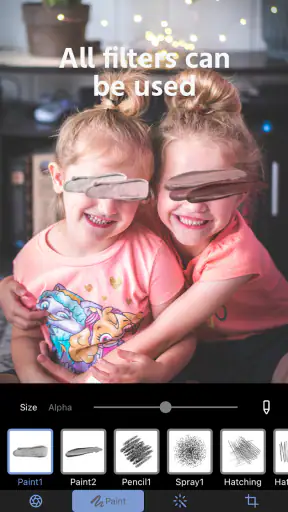
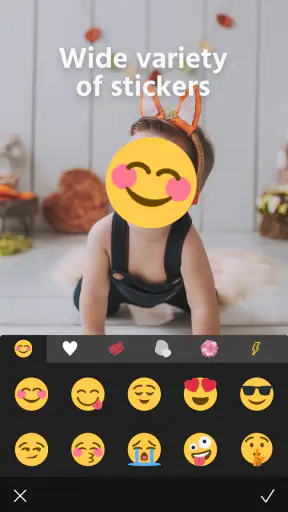
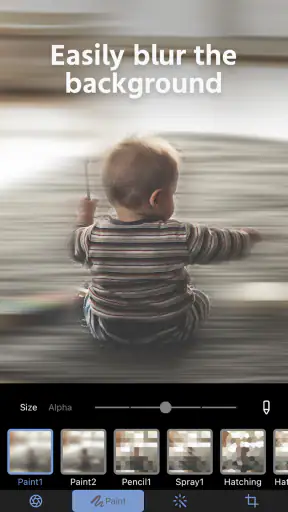
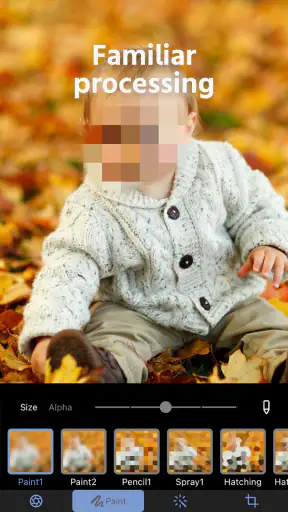
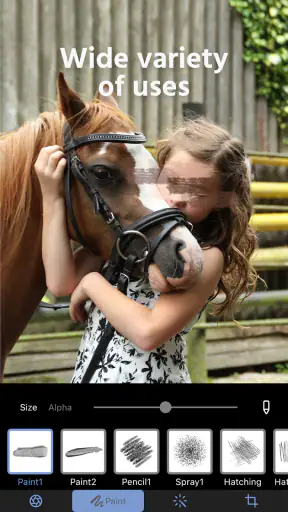
I reached for Photo Blur & Mosaic Effects when I wanted to hide a small piece of a picture without turning the whole image into a heavy edit. That narrow purpose is exactly where it feels most useful: covering a face, softening a license plate, masking a screen notification, or making a background less distracting before sharing a photo. It is a free photography app from Stellaxia, and its simple focus makes it easier to understand than a full editor packed with tools I may never touch.
My overall impression is positive, especially for quick privacy edits on a phone. The app has a 4.8 average from around 2.8 thousand ratings and has passed one million installs, so it is clearly not an obscure experiment. Still, popularity does not make it suitable for every editing job. If I need layers, careful retouching, color correction, or precise object removal, I would choose a broader photo editor. This app is better viewed as a focused utility that helps me obscure selected areas quickly.
How Photo Blur & Mosaic Effects fits real phone photography
A focused editor instead of an all-purpose studio
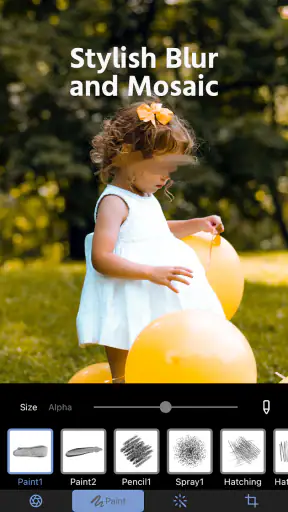
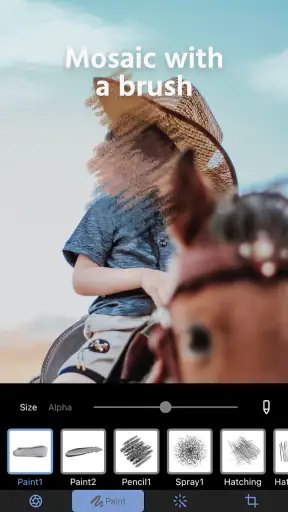
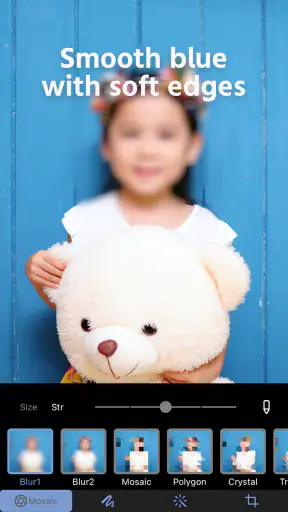
The main appeal is the limited scope. Rather than asking me to learn a complete editing workflow, the app centers on blur, mosaic, and pixelation effects. Those three treatments can produce noticeably different results. A soft blur is useful when I want an object to remain visually present but unreadable. Mosaic creates a more obvious block pattern, while pixelation gives an image a stronger censored appearance.
That distinction matters when preparing a photo for a particular audience. I might use a gentle blur on a stranger in the background of a travel shot, but choose pixelation for a private message visible on a phone screen. Mosaic is often the clearest choice when I want viewers to understand that an area was deliberately hidden rather than accidentally out of focus.
I also like that this kind of focused tool matches the way people actually edit on mobile. Many edits happen immediately before posting or sending an image, not during a long desktop session. When the only task is hiding one detail, opening a large editor can feel excessive. A dedicated blur app reduces the number of decisions between selecting a photo and sharing a safer version.
Useful situations beyond faces
Faces are the obvious example, but I found the concept more useful when thinking about incidental information. A street photograph may include a house number, a delivery label, a car plate, or a name on a shop window. A screenshot can expose an email address, a calendar entry, or a notification preview. Blurring those areas lets me keep the useful context of the image while removing the part I do not want to publish.
There is also a practical workplace use. If I want to show a damaged item, a handwritten note, or a layout problem to someone else, I may not want every surrounding detail visible. Covering unrelated names and numbers before sending the image can make the message more responsible without requiring a complete redesign of the picture.
One important habit is to zoom in mentally before applying an effect. A small thumbnail can make a covered area look safe even when letters or facial details remain partly recognizable at full size. I would inspect the edited image at its natural viewing size, then enlarge the sensitive region and check its edges. This extra check is more valuable than simply choosing the strongest-looking effect.
Working in changing mobile conditions
Connectivity shapes the experience mostly around the moments before and after editing. I may take a picture while commuting, in a crowded venue, or somewhere with an unreliable signal, then decide later that it needs masking. The important question is not only whether the effect looks good, but whether the whole journey from selecting the image to getting the finished copy behaves smoothly in that situation.
I would not plan a privacy-sensitive workflow around an assumption that every part of the app works without a connection. Instead, I would open the app and test the exact action I need before relying on it in a low-signal setting. If I am preparing images for an event or a trip, I would make a few edits in advance and confirm that the resulting files are available in my normal gallery or sharing workflow.
This is especially sensible because an edit can be complete on screen while the next step still depends on the phone’s broader sharing or storage behavior. A finished preview is not the same as a successfully saved copy. I treat saving and reopening as part of the edit, not as an afterthought.
Choosing the effect with intention
A useful workflow is to start with the smallest area that needs covering. Large strokes may be quick, but they can make the photo look careless and remove more context than necessary. For a face at the edge of a group, I would work around the complete facial area rather than stopping at the cheeks. For text, I would cover the whole line and a narrow margin around it, because partial characters can still reveal the meaning.
The trade-off is visual clarity. Strong pixelation protects readability better than a barely visible blur, but it draws attention to the edit. A softer treatment looks more natural, yet it may be less convincing for small text or high-contrast symbols. I would use the effect according to the sensitivity of the information, not according to which one looks nicest in the tool preview.
Another non-obvious use is reducing background distraction without pretending to remove it. Blurring a busy sign, a cluttered shelf, or an identifiable bystander can guide attention toward the subject. It is not the same as professional background replacement, and I would not use it to create a polished commercial image, but it can make a casual photo easier to read.
What happens when the workflow goes wrong
Every quick editor has moments where the first attempt is not good enough. The most common problem in this type of task is an incomplete mask: a corner of a document remains visible, or a moving face was only partly covered. My advice is to inspect the result before sharing and, if necessary, apply a wider second pass rather than trusting the first stroke.
I would also keep the original image until I am satisfied with the edited version. That gives me a recovery path if the effect is too strong, placed incorrectly, or saved in a way that does not suit the intended destination. The original is particularly important when the photo has sentimental value or when I may later need a different crop.
For a sensitive image, I would use a simple sequence: select the source, apply the mask, inspect the entire frame, enlarge the protected area, save the result, and reopen it before sending. This catches two different failures: an editing mistake and a saving or handoff mistake. It takes longer than tapping share immediately, but it is a sensible routine when privacy is the reason for editing.
A realistic everyday example
Imagine I photograph a parcel on my doorstep to report visible damage. The box, label, and torn corner are relevant, but the label also contains a name and address. With this app, I can preserve the evidence of the damaged packaging while obscuring the personal details. I would choose a strong mosaic or pixelation treatment for the address, check that no characters remain readable around the edges, then save a separate copy for the report.
That workflow shows both the strength and the limit of the app. It is excellent when the goal is to hide selected information while keeping the rest of the photograph intact. It does not replace a document scanner, a redaction system, or a professional image editor when the image must meet formal evidence requirements. For ordinary sharing, though, the focused approach is convenient.
Connectivity, sharing, and careful data habits
Because the app is designed for photos, I would think about data-conscious use in two stages. First, decide whether the image needs to leave the phone at all. If I am only preparing a picture for later, I can avoid rushing into a social or messaging app. Second, after editing, confirm that I am sharing the masked copy rather than the original. On a busy phone, both versions can look similar in a gallery, especially when they were created close together.
When the network is weak, I would avoid repeatedly sending the same image while trying to determine whether the correct version arrived. A better approach is to save one clearly identifiable edited copy, reopen it, and share that file once the connection is stable. This reduces confusion and avoids accidentally transmitting an unedited original during repeated attempts.
I would also be cautious with images containing more information than the visible subject. A photo can reveal a location through signs, paperwork, screens, or reflections even after a face is blurred. The app can hide selected visual areas, but it cannot replace a broader privacy check. Before sharing, I scan the whole frame and ask whether the remaining background tells someone more than I intended.
Where it compares well with the usual alternatives
Compared with a general photo editor, this app has a clearer purpose and a lower learning burden. A full editor is the better choice when I need to crop, adjust exposure, remove blemishes, add text, or combine several images in one project. Its extra tools provide flexibility, but they also create more room for distraction and accidental changes.
Compared with using a phone’s built-in markup tools, a dedicated blur and mosaic app is more appropriate when the hidden area is the central task rather than a quick annotation. Built-in tools may be enough for drawing over a number or adding a simple shape, but they are not always as visually suitable for blending a person into the background or making a privacy edit look deliberate.
Compared with online editors, a mobile-focused tool can be more comfortable for a picture that I do not want to upload merely to obscure one detail. I still make my own checks about the app and the device workflow, and I do not assume that a network is unnecessary. But avoiding an extra browser upload is a practical advantage when I am editing a personal image in a hurry.
The trade-off is depth. A specialist utility may be faster for one task but less useful once the job expands. If I need to hide several objects with complex shapes, correct lighting, and create a polished final composition, I would move to a more capable editor rather than forcing this app to act like one.
Who should use it, and who should skip it
I would recommend it to people who regularly share screenshots, street photos, family pictures, marketplace listings, or work images and want a quick way to cover selected details. It also suits anyone who finds large editing suites intimidating. The free price makes it easy to try, while optional in-app purchases range from $1.99 to $30.99 per item, so I would pay attention to any purchase screen and decide whether the extra value matches my occasional or frequent use.
The Everyone age rating makes the app broadly approachable, but that does not remove the need for good judgment when editing other people’s images. A blur is not permission to publish a private photo, and it should not be treated as a guarantee that every hidden detail is unrecoverable. I think of the effect as a practical sharing aid, not a substitute for consent or careful handling.
I would skip it if my main goal is artistic editing, advanced retouching, batch processing, or detailed control over a complete photo project. I would also look elsewhere if I need a documented redaction process for legal, medical, or professional records. In those cases, the convenience of a focused phone tool is outweighed by the need for stronger verification and a more controlled workflow.
Version, polish, and day-to-day friction
The current version is 1.0.7, and the app runs on operating systems from version 9 onward. That makes it accessible to many phones, including devices that are not running the newest software. In daily use, the most important test is whether the interface lets me select an image, apply a controlled effect, and recover from a poor stroke without making the process feel fragile.
The app’s simplicity is a benefit, but it can also make small workflow details more noticeable. If I am editing several images, I want to know at a glance which copy is original and which has been masked. I would name or organize the finished files clearly, especially when the images are being prepared for different recipients. This is not glamorous, but it prevents the most serious practical mistake: sharing the wrong version.
I also would not judge the app solely by how attractive the effect looks in a preview. A privacy edit should be evaluated at the size and destination where people will actually see it. A blur that appears opaque in the editor may look weaker after compression or resizing in a messaging service. For important images, I would inspect a compressed test share or use a stronger mask with a small margin around the sensitive content.
My connectivity verdict
Connectivity does not define the app, but it affects whether a quick edit becomes a dependable sharing routine. My approach is to prepare the image first, verify the masked copy second, and treat uploading or messaging as a separate step. That order keeps a weak signal from pressuring me into repeated taps or an accidental share of the original.
For me, the strongest reason to keep Photo Blur & Mosaic Effects installed is its clear answer to a common problem: I want to share the photo, but not every detail inside it. The app does not need to become a complete editing suite to be useful. Its value comes from being direct, especially when I am working from a phone and have only one or two areas to protect.
Stellaxia has made a sensible choice by focusing the experience around visual masking rather than burying it among dozens of unrelated tools. I would recommend trying it for everyday privacy edits, screenshots, and casual background softening, while keeping a broader editor available for more demanding work. My final verdict is favorable: use it as a focused last-mile privacy tool, then verify the saved image before it leaves your phone.


